MuhammadLab
Python programming resource

Complete guide to Tkinter for Python GUI development.

Learn Tkinter as a desktop front-end framework for Python. This guide explains windows, widgets, layouts, events, forms, validation, and beginner projects with runnable code and screenshots after every example.

20 runnable examplesWindow screenshotsBeginner friendlyPython GUI front-end

Front-end idea

Tkinter uses Python objects to create labels, buttons, inputs, and windows.

Event-driven logic

The app waits for clicks, typing, selections, and other user actions.

Visual feedback

Functions read user input, process it, and update widgets on screen.

Core mental model

What is Tkinter?

Tkinter is Python's built-in library for creating desktop graphical user interfaces. It lets students move from terminal programs to applications with windows, buttons, input boxes, menus, forms, and visual output.

In normal Python programs, the user interacts through the terminal. In Tkinter programs, the user interacts through a window. Each widget is created using Python code. When the user clicks a button or types something, Tkinter sends that event to a Python function.

Input widget - Python function - Output widget

Web front-end vs Tkinter

HTML elements
Widgets
CSS styling
Widget options
JavaScript events
Commands and bindings
Browser window
Tk root window
Page layout
pack, grid, place

Theory first

How students should think about Tkinter

Tkinter is easier when students understand the model before memorizing widgets. The important shift is from linear terminal code to visual, event-driven software.

A Tkinter program is not waiting for one input line. It is waiting for the next event.

GUI programming changes the user experience

A console program asks questions one line at a time. A GUI program places choices on the screen and lets the user decide what to click, type, or select. That means the program is no longer a straight top-to-bottom conversation. It becomes event-driven.

Tkinter is Python controlling a visual toolkit

Tkinter is the Python interface to Tk, a mature GUI toolkit. Python creates objects such as Label, Button, Entry, and Frame. Tk turns those objects into real desktop controls that appear in an operating-system window.

Every widget belongs to a parent

A Tkinter interface is a tree. The root window is the top parent. Frames can live inside the window. Labels, buttons, and entries can live inside frames. This parent-child idea is important because layout managers arrange widgets inside their parent container.

The event loop is the heartbeat

mainloop() keeps checking for events: clicks, key presses, window resizing, and close requests. When an event happens, Tkinter calls the connected Python function. Without the event loop, the window cannot stay alive or respond.

Widgets are the front-end; functions are the logic

A good Tkinter app separates interface code from processing code. The interface collects input and displays output. Python functions validate, calculate, load files, or process data. The button command is the bridge between those two sides.

Layout is a design decision

pack() is fast for simple vertical sections. grid() is best for forms and aligned rows. place() is precise but less responsive. Students should learn that layout is not just decoration; it affects usability and maintainability.

Application lifecycle

The five steps behind every Tkinter app

Once students understand this lifecycle, every example becomes easier to read. The app starts with a root window, builds visible controls, connects events to functions, then lets the event loop keep everything responsive.

1

Create the root window

This is the main desktop window that owns the whole application.

2

Create widgets

Labels, buttons, entries, text boxes, frames, and other visual controls are Python objects.

3

Place widgets

A widget exists in memory first, then pack(), grid(), or place() makes it visible.

4

Connect events to functions

Button commands and bindings tell Tkinter which Python function to run.

5

Start mainloop()

The application waits for user actions and updates the interface when events happen.

Important distinction

GUI code is event-driven, not line-by-line interaction.

In a terminal program, Python may ask for input, wait, then print output. In a Tkinter program, Python creates the interface first. After that, the user controls the timing. The code responds when the user clicks, types, selects, or closes the window.

Terminal thinking: ask, wait, print.
GUI thinking: display, listen, respond.

Common widgets

What can Tkinter create?

A widget is any visible part of the interface. These are the building blocks students use to design desktop applications.

Label

Shows text or images

Button

Runs a function when clicked

Entry

Single-line text input

Text

Multi-line text input

Frame

Groups widgets together

Checkbutton

Checkbox choice

Radiobutton

One choice from many options

Menu

Application menu bar

Scale

Slider input

Canvas

Drawing area

Runnable examples

Code, execute, then see the window.

Each example below includes Python code and a screenshot generated from running that example as a Tkinter window.

20 screenshots

Example 1

Your first Tkinter window

Create the main window and place a label inside it.

Link

Every Tkinter application starts with a root window. Widgets such as labels, buttons, and inputs are added to that window.

Theory

The first window teaches the minimum mental model: create a root window, add a widget, place it, and start the event loop. This is the desktop equivalent of creating a blank web page and placing one heading on it.

Key points

  • Tk() creates the main window.
  • Label creates visible text.
  • pack() places the label.
  • mainloop() keeps the app open.

Classroom note

Ask students to remove mainloop() once. They will see why the window cannot stay open without the event loop.

Python code
import tkinter as tk

window = tk.Tk()
window.title("My First App")
window.geometry("420x220")

label = tk.Label(window, text="Hello from Tkinter!")
label.pack(pady=40)

window.mainloop()
Screenshot after execution
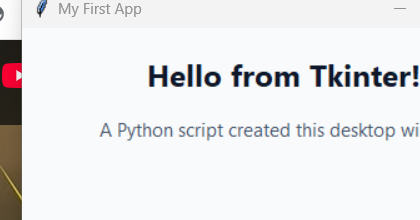
Your first Tkinter window Tkinter screenshot

This image was generated by executing the Tkinter example and capturing the application window.
Example 2

The basic Tkinter structure

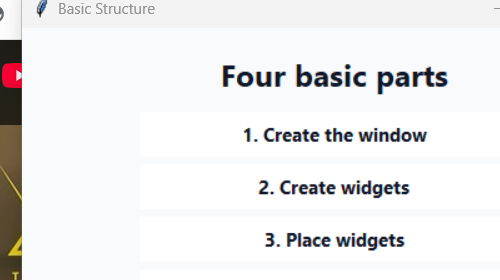
Understand the four parts of most Tkinter programs.

Link

A Tkinter app usually imports the library, creates a window, creates widgets, places those widgets, and starts the event loop.

Theory

Most Tkinter programs follow the same skeleton. Students should recognize this pattern before learning many widgets, because every larger app is just this structure repeated with more controls and functions.

Key points

  • Import Tkinter.
  • Create the window.
  • Create widgets.
  • Choose a layout manager.
  • Run the event loop.

Classroom note

Treat this as the template students can reuse whenever they start a new GUI program.

Python code
import tkinter as tk

window = tk.Tk()
window.title("Basic Structure")

label = tk.Label(window, text="1. Create the window")
label.pack()

button = tk.Button(window, text="2. Create widgets")
button.pack()

window.mainloop()
Screenshot after execution
The basic Tkinter structure Tkinter screenshot

This image was generated by executing the Tkinter example and capturing the application window.
Example 3

Tkinter as a Python front-end

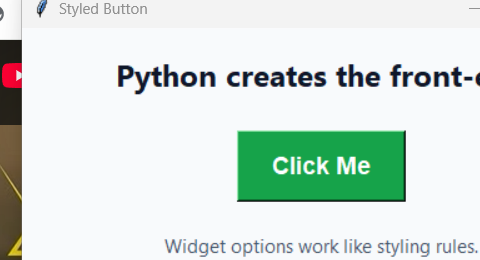
Style a widget using Python options.

Link

In web development, HTML creates elements and CSS styles them. In Tkinter, Python objects create widgets and widget options style them.

Theory

Tkinter styling happens through widget options. Instead of writing CSS, students pass options such as bg, fg, font, padx, and pady. This helps them see that a GUI widget has both behavior and appearance.

Key points

  • bg changes background color.
  • fg changes text color.
  • font controls typeface and size.
  • padx and pady add internal spacing.

Classroom note

Let students change colors and font size first. Fast visual feedback makes GUI learning less abstract.

Python code
import tkinter as tk

window = tk.Tk()
window.title("Styled Button")

button = tk.Button(
    window,
    text="Click Me",
    bg="green",
    fg="white",
    font=("Arial", 14, "bold"),
    padx=20,
    pady=10
)
button.pack(pady=50)

window.mainloop()
Screenshot after execution
Tkinter as a Python front-end Tkinter screenshot

This image was generated by executing the Tkinter example and capturing the application window.
Example 4

Main window settings

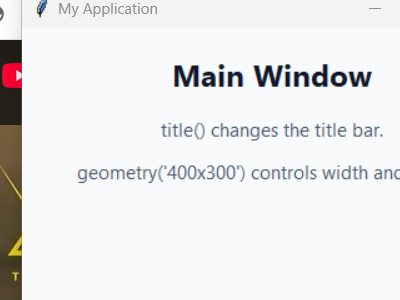
Set the title and size of the application window.

Link

The root window is the container for the whole application. The title appears in the title bar, and geometry controls the default width and height.

Theory

The root window controls the application shell: title, default size, minimum size, icon, and resizing behavior. Good desktop apps start by giving the window a clear name and reasonable dimensions.

Key points

  • title() changes the title bar.
  • geometry() sets initial width and height.
  • The window is the parent for top-level widgets.

Classroom note

Explain geometry as width x height in pixels, then connect it to screen design and readability.

Python code
import tkinter as tk

window = tk.Tk()
window.title("My Application")
window.geometry("400x300")

label = tk.Label(window, text="This is the main window.")
label.pack(pady=40)

window.mainloop()
Screenshot after execution
Main window settings Tkinter screenshot

This image was generated by executing the Tkinter example and capturing the application window.
Example 5

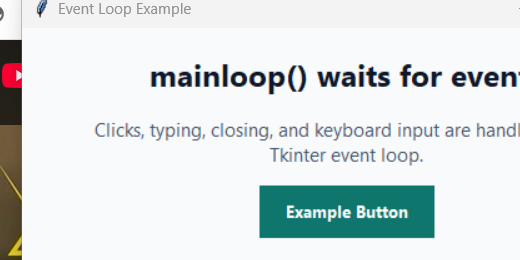
The event loop

Understand why mainloop() is needed.

Link

The event loop keeps the window open and waits for user actions such as clicks, typing, keyboard input, and closing the window.

Theory

The event loop is what makes GUI programming different from normal scripts. The program does not simply finish after printing output. It waits, listens, and reacts whenever the user does something.

Key points

  • mainloop() waits for events.
  • Events include clicks, typing, resize, and close.
  • Callbacks run in response to events.

Classroom note

This is the best place to introduce the word callback: a function Tkinter calls later when something happens.

Python code
import tkinter as tk

window = tk.Tk()
window.title("Event Loop Example")

label = tk.Label(
    window,
    text="This window stays open because of mainloop."
)
label.pack(pady=30)

button = tk.Button(window, text="Example Button")
button.pack()

window.mainloop()
Screenshot after execution
The event loop Tkinter screenshot

This image was generated by executing the Tkinter example and capturing the application window.
Example 6

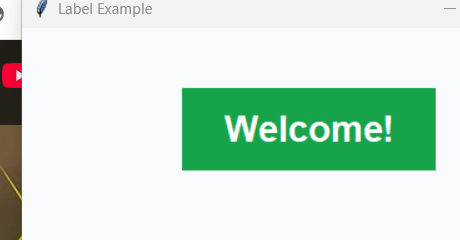
Label widget

Display styled text on the screen.

Link

A Label is used for text, headings, messages, and simple output. Common options include text, font, fg, bg, width, and height.

Theory

Labels are output widgets. They are useful for headings, instructions, status messages, validation feedback, and results. Students should understand that labels can be updated later, not only created once.

Key points

  • Labels display text.
  • They can be styled.
  • They can show results after a function runs.

Classroom note

Use labels for clear instructions. Beginners often forget that a GUI should guide the user.

Python code
import tkinter as tk

window = tk.Tk()
window.title("Label Example")

label = tk.Label(
    window,
    text="Welcome!",
    font=("Arial", 22, "bold"),
    fg="white",
    bg="green",
    padx=30,
    pady=15
)
label.pack(pady=50)

window.mainloop()
Screenshot after execution
Label widget Tkinter screenshot

This image was generated by executing the Tkinter example and capturing the application window.
Example 7

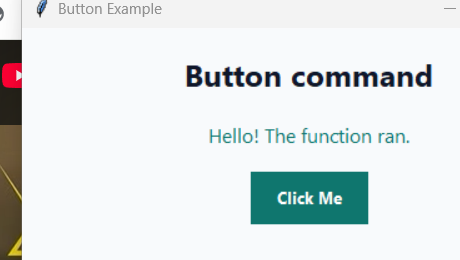
Button command

Run a Python function when a button is clicked.

Link

The command option connects a button to a function. Use command=say_hello, not command=say_hello(), because parentheses call the function immediately.

Theory

Buttons introduce action. A button does not do anything by itself; it needs a command. The command option stores a reference to a Python function that Tkinter will call when the user clicks.

Key points

  • command=function_name passes the function.
  • command=function_name() runs immediately and is usually wrong.
  • Buttons connect the interface to logic.

Classroom note

This is one of the most common beginner mistakes, so make the parentheses difference very explicit.

Python code
import tkinter as tk

def say_hello():
    result_label.config(text="Hello! The function ran.")

window = tk.Tk()
window.title("Button Example")

result_label = tk.Label(window, text="Waiting for click...")
result_label.pack(pady=20)

button = tk.Button(window, text="Click Me", command=say_hello)
button.pack()

window.mainloop()
Screenshot after execution
Button command Tkinter screenshot

This image was generated by executing the Tkinter example and capturing the application window.
Example 8

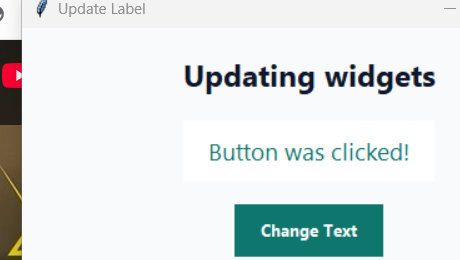
Updating a widget after a click

Change label text while the application is already running.

Link

The config() method updates a widget after it has been created. This is how Tkinter apps show new results.

Theory

Real apps change after user interaction. config() lets students modify an existing widget instead of creating a new one. This teaches dynamic interfaces: the screen responds to program state.

Key points

  • config() updates widget options.
  • Labels often show changing output.
  • The widget variable must be accessible to the callback.

Classroom note

Connect this to state: before click the label has one state, after click it has another.

Python code
import tkinter as tk

def change_text():
    label.config(text="Button was clicked!", fg="green")

window = tk.Tk()
window.title("Update Label")

label = tk.Label(window, text="Original text")
label.pack(pady=20)

button = tk.Button(window, text="Change Text", command=change_text)
button.pack()

window.mainloop()
Screenshot after execution
Updating a widget after a click Tkinter screenshot

This image was generated by executing the Tkinter example and capturing the application window.
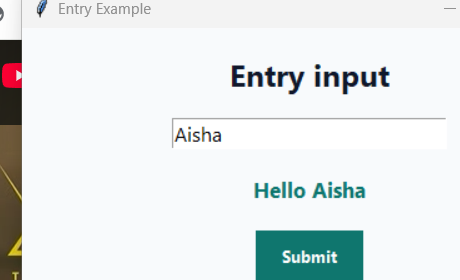
Example 9

Entry input

Read text typed by the user.

Link

Entry is a single-line input widget. The get() method reads whatever the user typed.

Theory

Entry turns the GUI from display-only into interactive input. The user types text, and Python reads it with get(). The value is always text first, even if the user typed a number.

Key points

  • Entry is single-line input.
  • get() reads the current text.
  • Convert text to int or float when needed.

Classroom note

Remind students that user input is untrusted. Later examples should validate it before using it.

Python code
import tkinter as tk

def show_name():
    name = entry.get()
    label.config(text="Hello " + name)

window = tk.Tk()
window.title("Entry Example")

entry = tk.Entry(window)
entry.pack(pady=10)

button = tk.Button(window, text="Submit", command=show_name)
button.pack()

label = tk.Label(window, text="")
label.pack(pady=10)

window.mainloop()
Screenshot after execution
Entry input Tkinter screenshot

This image was generated by executing the Tkinter example and capturing the application window.
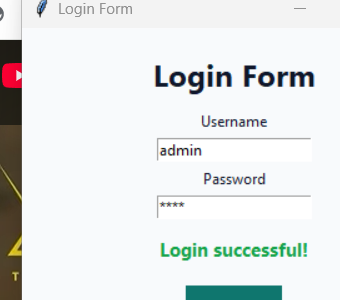
Example 10

Simple login form

Combine labels, entries, buttons, password masking, and conditional logic.

Link

This example shows the common pattern: input widgets send data to a Python function, and the function updates an output widget.

Theory

A login form combines several core ideas: labels for instructions, entries for input, password masking, a button event, conditional logic, and result feedback. It is a mini version of many real forms.

Key points

  • show="*" hides password characters.
  • The login function reads both entries.
  • The result label gives feedback without using print().

Classroom note

Make clear that this is a teaching demo, not secure authentication. Real login systems need hashing, databases, and server-side validation.

Python code
import tkinter as tk

def login():
    username = username_entry.get()
    password = password_entry.get()

    if username == "admin" and password == "1234":
        result_label.config(text="Login successful!", fg="green")
    else:
        result_label.config(text="Invalid username or password", fg="red")

window = tk.Tk()
window.title("Login Form")
window.geometry("340x300")

tk.Label(window, text="Login Form", font=("Arial", 18)).pack(pady=10)

tk.Label(window, text="Username").pack()
username_entry = tk.Entry(window)
username_entry.pack()

tk.Label(window, text="Password").pack()
password_entry = tk.Entry(window, show="*")
password_entry.pack()

tk.Button(window, text="Login", command=login).pack(pady=10)
result_label = tk.Label(window, text="")
result_label.pack()

window.mainloop()
Screenshot after execution
Simple login form Tkinter screenshot

This image was generated by executing the Tkinter example and capturing the application window.
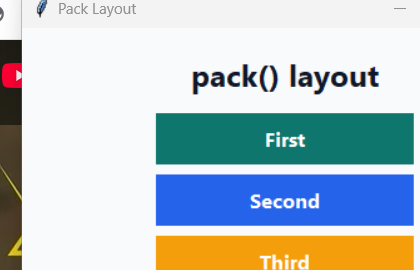
Example 11

pack() layout

Place widgets vertically with simple spacing.

Link

pack() is the easiest layout manager. By default, widgets stack from top to bottom.

Theory

pack() is useful when the interface is naturally stacked: title, input, button, result. It manages available space for you, which makes it beginner-friendly.

Key points

  • Default direction is top to bottom.
  • pady adds vertical spacing.
  • side can change direction.

Classroom note

Use pack() for quick demos and simple apps. It keeps early lessons clean.

Python code
import tkinter as tk

window = tk.Tk()
window.title("Pack Layout")

tk.Label(window, text="First", bg="teal", fg="white").pack(pady=5)
tk.Label(window, text="Second", bg="blue", fg="white").pack(pady=5)
tk.Label(window, text="Third", bg="orange").pack(pady=5)

window.mainloop()
Screenshot after execution
pack() layout Tkinter screenshot

This image was generated by executing the Tkinter example and capturing the application window.
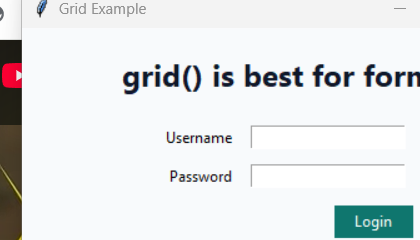
Example 12

grid() layout

Create table-like forms with rows and columns.

Link

grid() is useful for forms because labels and inputs can align neatly in rows and columns. Do not mix pack() and grid() in the same parent container.

Theory

grid() gives a table-like layout. It is the best choice for forms because labels can sit in one column and inputs in another. It also scales better when forms become larger.

Key points

  • row controls vertical position.
  • column controls horizontal position.
  • padx and pady add spacing.
  • Do not mix pack and grid in the same parent.

Classroom note

Explain that pack and grid can both be used in one app, but not inside the same container.

Python code
import tkinter as tk

window = tk.Tk()
window.title("Grid Example")

tk.Label(window, text="Username").grid(row=0, column=0, padx=6, pady=6)
tk.Entry(window).grid(row=0, column=1, padx=6, pady=6)

tk.Label(window, text="Password").grid(row=1, column=0, padx=6, pady=6)
tk.Entry(window, show="*").grid(row=1, column=1, padx=6, pady=6)

tk.Button(window, text="Login").grid(row=2, column=1, pady=8)

window.mainloop()
Screenshot after execution
grid() layout Tkinter screenshot

This image was generated by executing the Tkinter example and capturing the application window.
Example 13

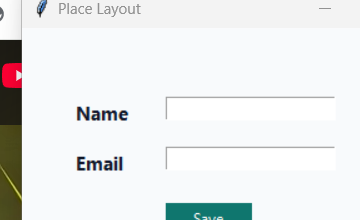
place() layout

Position widgets using exact x and y coordinates.

Link

place() gives precise control, but it is less flexible when the window is resized. It is best for small demos or fixed-size interfaces.

Theory

place() uses exact coordinates. This feels simple at first because x and y are direct, but fixed positioning can break when the window changes size or content becomes longer.

Key points

  • x is horizontal position.
  • y is vertical position.
  • Good for fixed demos.
  • Less flexible for responsive layouts.

Classroom note

Use place() to teach coordinates, but recommend grid() or pack() for most student projects.

Python code
import tkinter as tk

window = tk.Tk()
window.title("Place Layout")
window.geometry("360x220")

label = tk.Label(window, text="Name")
label.place(x=40, y=55)

entry = tk.Entry(window)
entry.place(x=115, y=55)

button = tk.Button(window, text="Save")
button.place(x=115, y=140)

window.mainloop()
Screenshot after execution
place() layout Tkinter screenshot

This image was generated by executing the Tkinter example and capturing the application window.
Example 14

Frames

Group widgets into sections.

Link

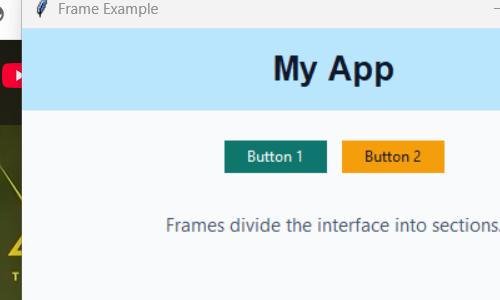
A Frame is a container inside the window. Larger interfaces often use frames for headers, forms, buttons, and output areas.

Theory

Frames are how students move from tiny examples to real application design. A frame creates a section, such as a header, sidebar, form area, or output panel.

Key points

  • Frames group related widgets.
  • Each frame can use its own layout manager.
  • Frames make larger apps easier to organize.

Classroom note

Draw the interface as boxes before coding. Then convert each box into a Frame.

Python code
import tkinter as tk

window = tk.Tk()
window.title("Frame Example")

top_frame = tk.Frame(window, bg="lightblue")
top_frame.pack(fill="x")

bottom_frame = tk.Frame(window)
bottom_frame.pack(pady=20)

title = tk.Label(top_frame, text="My App", bg="lightblue", font=("Arial", 20))
title.pack(pady=10)

tk.Button(bottom_frame, text="Button 1").pack(side="left", padx=5)
tk.Button(bottom_frame, text="Button 2").pack(side="left", padx=5)

window.mainloop()
Screenshot after execution
Frames Tkinter screenshot

This image was generated by executing the Tkinter example and capturing the application window.
Example 15

Tkinter variables

Connect Python variables directly to widgets.

Link

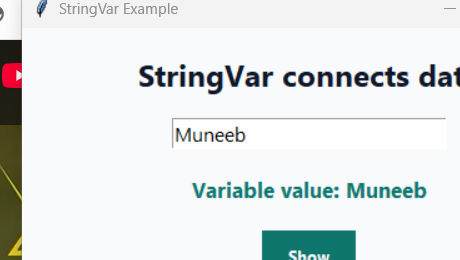
StringVar, IntVar, DoubleVar, and BooleanVar store values that widgets can read from and write to.

Theory

Tkinter variables connect program state to widgets. They are especially useful when multiple widgets need to share or observe the same value, such as form fields and option controls.

Key points

  • StringVar stores text.
  • IntVar stores integers.
  • DoubleVar stores decimals.
  • BooleanVar stores true/false values.

Classroom note

Show that changing the variable can update a widget, and changing the widget can update the variable.

Python code
import tkinter as tk

def show_value():
    output_label.config(text="Variable value: " + name_var.get())

window = tk.Tk()
window.title("StringVar Example")

name_var = tk.StringVar(value="Muneeb")

entry = tk.Entry(window, textvariable=name_var)
entry.pack(pady=20)

tk.Button(window, text="Show", command=show_value).pack()

output_label = tk.Label(window, text="")
output_label.pack(pady=10)

window.mainloop()
Screenshot after execution
Tkinter variables Tkinter screenshot

This image was generated by executing the Tkinter example and capturing the application window.
Example 16

Checkbutton

Use a checkbox for true/false or yes/no choices.

Link

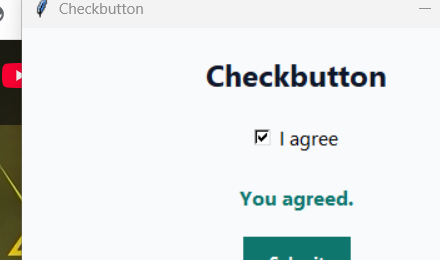
A Checkbutton is usually connected to an IntVar or BooleanVar. The value changes when the user ticks or unticks it.

Theory

Checkbuttons represent optional choices. They are perfect for yes/no values, preferences, consent boxes, and feature toggles.

Key points

  • The variable stores checked state.
  • IntVar often returns 1 or 0.
  • A button can read the checkbox value.

Classroom note

Use examples such as "I agree", "Enable notifications", or "Include tax" so the purpose feels real.

Python code
import tkinter as tk

def show_choice():
    if agree_var.get() == 1:
        label.config(text="You agreed.")
    else:
        label.config(text="You did not agree.")

window = tk.Tk()
window.title("Checkbutton")

agree_var = tk.IntVar()

check = tk.Checkbutton(window, text="I agree", variable=agree_var)
check.pack(pady=20)

tk.Button(window, text="Submit", command=show_choice).pack()

label = tk.Label(window, text="")
label.pack(pady=10)

window.mainloop()
Screenshot after execution
Checkbutton Tkinter screenshot

This image was generated by executing the Tkinter example and capturing the application window.
Example 17

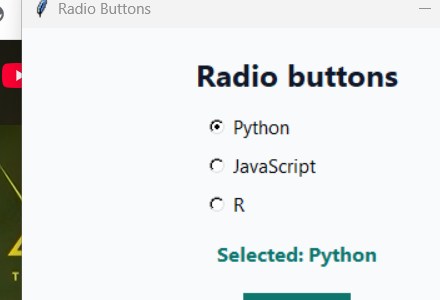
Radio buttons

Allow one choice from several options.

Link

Radio buttons share the same variable. Only one option can be selected at a time.

Theory

Radio buttons represent mutually exclusive choices. The important idea is that all radio buttons in one group share the same variable but each has a different value.

Key points

  • One shared variable creates the group.
  • Each option has its own value.
  • Only one option is selected at a time.

Classroom note

Good examples are payment method, difficulty level, language choice, or quiz answers.

Python code
import tkinter as tk

def show_choice():
    label.config(text="Selected: " + language_var.get())

window = tk.Tk()
window.title("Radio Buttons")

language_var = tk.StringVar(value="Python")

tk.Radiobutton(window, text="Python", variable=language_var, value="Python").pack()
tk.Radiobutton(window, text="JavaScript", variable=language_var, value="JavaScript").pack()
tk.Radiobutton(window, text="R", variable=language_var, value="R").pack()

tk.Button(window, text="Submit", command=show_choice).pack(pady=10)

label = tk.Label(window, text="")
label.pack()

window.mainloop()
Screenshot after execution
Radio buttons Tkinter screenshot

This image was generated by executing the Tkinter example and capturing the application window.
Example 18

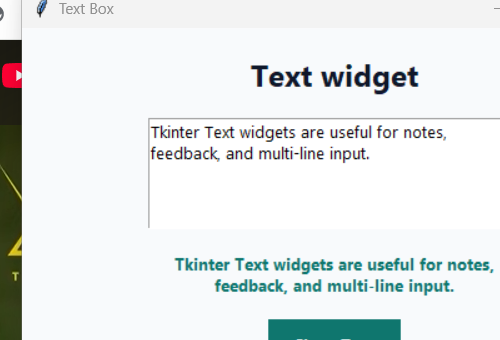
Text widget

Read multi-line input.

Link

Text is used for paragraphs, notes, feedback boxes, and editor-like interfaces. Use get("1.0", tk.END) to read all text.

Theory

Text is a multi-line input widget. It is different from Entry because it stores content using line and character positions, which is why the start index is written as "1.0".

Key points

  • Text supports paragraphs.
  • "1.0" means line 1, character 0.
  • tk.END means read to the end.
  • strip() removes extra newline characters.

Classroom note

This widget is the foundation for text editors, feedback forms, note apps, and simple writing tools.

Python code
import tkinter as tk

def get_text():
    content = text_box.get("1.0", tk.END)
    label.config(text=content.strip())

window = tk.Tk()
window.title("Text Box")

text_box = tk.Text(window, height=5, width=35)
text_box.pack(pady=10)

tk.Button(window, text="Show Text", command=get_text).pack()

label = tk.Label(window, text="", wraplength=350)
label.pack(pady=10)

window.mainloop()
Screenshot after execution
Text widget Tkinter screenshot

This image was generated by executing the Tkinter example and capturing the application window.
Example 19

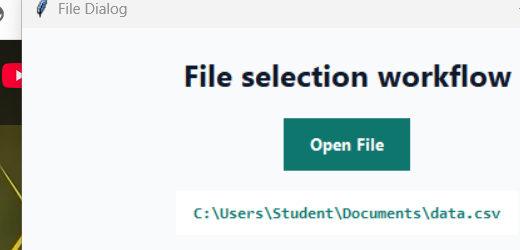
File dialog workflow

Let the user select a file from their computer.

Link

filedialog.askopenfilename() opens the operating system file picker and returns the selected file path.

Theory

File dialogs connect a GUI app to the user's computer files. Instead of typing file paths manually, the user picks a file through the operating system.

Key points

  • askopenfilename() returns a path.
  • The path can be empty if the user cancels.
  • File types can be restricted.

Classroom note

This is a bridge to data analysis projects because students can load CSV, TXT, or image files from a GUI.

Python code
import tkinter as tk
from tkinter import filedialog

def open_file():
    file_path = filedialog.askopenfilename()
    label.config(text=file_path)

window = tk.Tk()
window.title("File Dialog")

tk.Button(window, text="Open File", command=open_file).pack(pady=20)

label = tk.Label(window, text="")
label.pack(pady=10)

window.mainloop()
Screenshot after execution
File dialog workflow Tkinter screenshot

This image was generated by executing the Tkinter example and capturing the application window.
Example 20

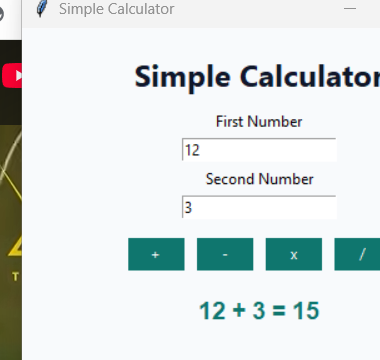
Mini project: calculator

Build a beginner project that uses entries, buttons, functions, frames, and error handling.

Link

This project connects front-end input widgets to Python calculation functions, then displays the result in a label.

Theory

The calculator project combines the complete beginner model: input widgets collect values, Python functions calculate results, error handling protects the app, and labels display output.

Key points

  • Entries collect numbers as text.
  • Callbacks perform operations.
  • try/except prevents crashes.
  • Frames help organize operation buttons.

Classroom note

After students finish this, ask them to add clear, square, power, or percentage buttons as extensions.

Python code
import tkinter as tk
from tkinter import messagebox

def add():
    try:
        num1 = float(first_entry.get())
        num2 = float(second_entry.get())
        result_label.config(text="Result: " + str(num1 + num2))
    except ValueError:
        messagebox.showerror("Error", "Please enter valid numbers.")

def subtract():
    try:
        num1 = float(first_entry.get())
        num2 = float(second_entry.get())
        result_label.config(text="Result: " + str(num1 - num2))
    except ValueError:
        messagebox.showerror("Error", "Please enter valid numbers.")

def multiply():
    try:
        num1 = float(first_entry.get())
        num2 = float(second_entry.get())
        result_label.config(text="Result: " + str(num1 * num2))
    except ValueError:
        messagebox.showerror("Error", "Please enter valid numbers.")

def divide():
    try:
        num1 = float(first_entry.get())
        num2 = float(second_entry.get())
        if num2 == 0:
            messagebox.showerror("Error", "Cannot divide by zero.")
        else:
            result_label.config(text="Result: " + str(num1 / num2))
    except ValueError:
        messagebox.showerror("Error", "Please enter valid numbers.")

window = tk.Tk()
window.title("Simple Calculator")
window.geometry("380x360")

tk.Label(window, text="Simple Calculator", font=("Arial", 18)).pack(pady=10)

tk.Label(window, text="First Number").pack()
first_entry = tk.Entry(window)
first_entry.pack()

tk.Label(window, text="Second Number").pack()
second_entry = tk.Entry(window)
second_entry.pack()

button_frame = tk.Frame(window)
button_frame.pack(pady=10)

tk.Button(button_frame, text="+", width=5, command=add).grid(row=0, column=0, padx=5)
tk.Button(button_frame, text="-", width=5, command=subtract).grid(row=0, column=1, padx=5)
tk.Button(button_frame, text="x", width=5, command=multiply).grid(row=0, column=2, padx=5)
tk.Button(button_frame, text="/", width=5, command=divide).grid(row=0, column=3, padx=5)

result_label = tk.Label(window, text="Result:", font=("Arial", 14))
result_label.pack(pady=10)

window.mainloop()
Screenshot after execution
Mini project: calculator Tkinter screenshot

This image was generated by executing the Tkinter example and capturing the application window.

Teaching sequence

Suggested Tkinter mini-module

Lesson 1

GUI programming, first window, event loop

Lesson 2

Widgets: labels, buttons, entries, and text boxes

Lesson 3

Layouts: pack, grid, place, and frames

Lesson 4

Events, button commands, user input, and updating labels

Lesson 5

Forms, validation, checkboxes, radio buttons, and variables

Lesson 6

File dialogs, simple data loading, and project structure

Project ideas

Beginner projects after this guide

Login form
Entries, validation, password masking
Calculator
Buttons, functions, layout, error handling
To-do list
Listbox, input, add/delete buttons
CSV viewer
File dialog, CSV module or pandas
Text editor
Text widget, file open/save
Unit converter
Functions, entries, labels
Quiz app
Radio buttons and score tracking
Student marks calculator
Forms, validation, calculations

Final teaching message

Tkinter connects Python logic to visual interfaces.

A good Tkinter app has input widgets, Python functions, and output widgets. Students should learn to keep calculation logic separate from interface logic, then connect them through button commands and event handlers.

Open programming resources